Category Archives: Teams meeting recorder

How to Record a Teams Meeting to Your Local Computer (Not OneDrive)

Teams saves its recordings in the cloud: one-to-one and scheduled meeting recordings go to the organiser’s OneDrive, channel meeting recordings go to the team’s SharePoint site. For a lot of people that is the wrong destination. The file belongs to someone else’s account, it expires on a schedule you did not choose, guests often cannot record at all, and an administrator can switch the whole feature off.

Recording the meeting to your own computer avoids all of it. This guide walks through it end to end.

What “local recording” actually means

There are two very different things people mean by recording a Teams meeting locally.

The first is downloading a cloud recording after the fact. That still requires a Microsoft 365 licence, still depends on the organiser sharing the file with you, and still runs into the retention timer – you are just copying a file that was going to expire anyway.

The second is capturing the meeting on your machine as it happens, without Teams’ cloud recorder being involved at all. That is what Evaer does. It reads the audio and video that the Teams desktop app is already decoding, so the file exists only on your disk, from the moment you press stop.

Step by step

  1. Download and install Evaer for Teams on the Windows PC you take the meeting on. It is a one-screen installer, and the trial is fully functional.
  2. Start or join the Teams meeting in the normal Teams desktop app. Evaer works alongside it – you do not switch apps or dial in through anything else.
  3. Choose a layout in Evaer before or during the call: side-by-side landscape, side-by-side portrait, picture-in-picture, separate video files per participant, or screencast for a shared screen.
  4. Press Start Recording once the call connects. If you would rather not think about it, turn on automatic recording and Evaer starts a new file every time a Teams call connects.
  5. Swap the main video if needed. In picture-in-picture and side-by-side modes you can change which participant fills the main window while recording continues.
  6. Press Stop. The MP4 (or AVI) file is already on your disk. No processing queue, no upload, no waiting for a link.

Choosing a layout

Layout Best for
Side-by-side, landscape Interviews and two-person calls you want to publish or transcribe
Side-by-side, portrait Vertical video, mobile-first clips
Picture-in-picture Showing a presenter with the other party small in the corner
Separate video files Editing later – one file per participant, so you cut in any order
Screencast Screen-sharing sessions, demos and walkthroughs

Audio: pick the channel you need

Evaer can capture both sides mixed, your microphone only, or the remote party only. The last option is more useful than it sounds: it gives you a clean copy of the other person’s voice with none of your own room noise, which is what you want for transcription, for a quote, or for a record where only their side matters.

A separate MP3 track can be written alongside the video, and voice-only calls are saved as MP3 automatically without any video container at all.

Why the picture quality holds up

Evaer captures the original media stream rather than taking screenshots of your desktop. That means the resolution is whatever Teams received – up to 1080p – and it does not change if you resize or move the Teams window mid-call, open another application, or get a notification pop-up. A screen recorder would record all of that; Evaer records the call.

What you need

  • Windows 10 or 11, 32-bit or 64-bit
  • The Microsoft Teams desktop application (the free version is enough – no Microsoft 365 subscription)
  • About 8 MB of disk space for the installer, plus room for the recordings

The trial records up to five minutes per file, which is long enough to check the quality against your own meeting setup. A licence removes the limit.

One thing to decide before you record

Teams’ own recorder tells everyone it is running. A local recorder does not, because it sits outside Teams and Microsoft never knows about it. That difference is a technical fact, not a legal one: in jurisdictions that require all-party consent, you still need consent. Decide your policy before the meeting, not during it.

Quick answers

Can I record a Teams meeting without a Microsoft 365 subscription?

Yes, if you record locally. Teams’ own cloud recorder requires a paid Microsoft 365 licence, but a desktop recorder such as Evaer captures the meeting from the Teams desktop app, so the free version of Teams is enough.

Where are Evaer recordings saved?

On your local hard disk, in the folder you choose in Evaer’s settings, as MP4 or AVI video with optional MP3 audio. Nothing is uploaded to Microsoft or to any other service.

Does the recording quality drop if I resize the Teams window?

No. Evaer captures the original media stream rather than the screen, so moving or resizing the Teams window during a call has no effect on the recorded resolution.

Can an administrator block this kind of recording?

Not from the Teams admin centre. Tenant policies control Microsoft’s built-in recorder. A local recorder runs on the user’s own PC and is outside that control.

Can I record a Teams meeting I was invited to as a guest?

Yes. Guests and external participants usually cannot start a cloud recording, but a local recorder on your own computer does not depend on your role in the meeting.
Related

Does Microsoft Teams Notify Participants When You Record a Meeting?

Yes. When you start a recording with Microsoft Teams’ own recorder, every participant in the meeting is told. A banner appears across the top of the meeting window, a recording indicator sits next to the meeting timer, and a system message is posted in the meeting chat. The person recording cannot switch this off, and no Teams setting or tenant policy can hide it.

That behaviour is the reason a lot of people go looking for another way to record a Teams meeting. This article covers exactly what is shown to whom, why Microsoft made the notice non-optional, and what your realistic options are.

What each participant actually sees

Where What appears
Teams desktop app Red recording indicator beside the meeting timer, plus a banner at the top of the meeting window
Teams on the web The same banner and indicator
Teams mobile app A notification that recording has started, and a recording icon in the participant list
Meeting chat A system message announcing that recording started, and later a link to the recording itself
Anyone who joins late Sees the indicator already in place, so they know recording is in progress

The notice is not a setting that can be tuned down. It is part of how the recording feature is built, and it is visible to guests and external participants as well as colleagues.

Why Microsoft will not let you hide it

Recording law, mostly. In a number of jurisdictions – several US states, and parts of Europe and Asia – recording a conversation requires the consent of everyone on the call, not just the person pressing the button. Others require only one party’s consent, but a company operating across borders has to assume the strictest rule applies. Microsoft’s position is that the notification is what makes the feature defensible: if everyone in the meeting has been told, nobody can argue afterwards that they did not know.

There is a second reason. The recording goes into a tenant: it lands in the organiser’s OneDrive or on a SharePoint site, it is subject to retention policies, and it may be discoverable in litigation. A file that other people can find later needs to have been announced when it was made.

Can an administrator turn the notification off?

No. An administrator has one control: whether meeting recording is available at all. If recording is enabled, the notification is always shown. There is no silent mode, no “record without notice” checkbox and no policy that removes the banner. If you cannot accept the announcement, the built-in recorder is not the tool for the job – not because of a setting you have not found, but because the setting does not exist.

The alternative: record on your own computer

A recorder that runs on your own PC works at a different layer. Instead of asking Microsoft’s cloud to record the meeting, it captures the audio and video that the Teams desktop application is already receiving, and writes the file to your local disk. Nothing is sent to Microsoft, so Microsoft has nothing to announce and no indicator to display.

Evaer for Teams works this way. It records Teams meetings that are running in the unmodified Teams desktop app, saves MP4 or AVI video (up to 1080p) and MP3 audio to your own hard drive, and adds no banner, indicator or chat message of any kind. For everyone else on the call it is an ordinary meeting.

Teams built-in recording Local recorder (Evaer)
Participants notified Yes, always No
Microsoft 365 licence Required Not required
Admin can disable Yes No
File location OneDrive / SharePoint Your local disk
Retention expiry Yes, per tenant policy None

When a silent local recording is the right choice

  • Journalism and interviews. A verifiable record of what a source actually said, kept by the journalist rather than the interviewee’s organisation.
  • Customer support and pre-sales. Documenting what was agreed on a call without asking a customer to sit through a recording announcement.
  • Research. Participants who know a camera is on give rehearsed answers; a record made unobtrusively preserves what was actually said.
  • Accessibility. Your own copy of a meeting you need to review again, at your own pace, without waiting for a cloud recording to be processed and shared.

One caution about the law

Silent recording is a technical capability, not a legal defence. All-party consent rules apply to the act of recording, not to whether a notification appeared. If you are in a jurisdiction that requires everyone’s consent, a local recorder does not change that – it only means the software will not tell them for you. Check your local rules, and where consent is required, ask for it.

Quick answers

Does Microsoft Teams notify everyone when you start recording?

Yes. A banner appears at the top of the meeting window, a recording indicator appears beside the meeting timer in every participant’s app, and a system message is posted in the meeting chat. It applies to guests and external participants too.

Can you turn off the Teams recording notification?

No. There is no setting, checkbox or tenant policy that hides it. An administrator can only enable or disable recording altogether; if recording is on, the notice is always shown.

Can a guest record a Teams meeting?

Not with Teams’ own recorder – guests and external participants cannot start a cloud recording, and many tenants disable it for them entirely. A local recorder running on the guest’s own PC is not affected by that restriction.

Is it legal to record a Teams meeting without telling anyone?

It depends where you are. Some jurisdictions require the consent of every party on the call, others only one. Recording law applies to the recording itself, not to whether a notification was displayed, so check your local rules before you record.

Related

Evaer for Teams: Record Microsoft Teams Meetings Without a Microsoft 365 Subscription

Microsoft Teams ships with a record button, and for a lot of people that button is useless. Cloud recording is tied to a Microsoft 365 business or education license, it can be switched off by your tenant administrator, it announces itself to every participant with a banner, and the file lands in OneDrive or SharePoint under a retention policy you do not control. If you are on the free version of Teams, on a personal account, or simply work somewhere that locks down recording, you have no native option at all.

Evaer for Teams exists to close that gap. It is a Windows recorder for the Microsoft Teams desktop application that records meetings to your own hard drive — no Microsoft 365 subscription, no Teams Premium add-on, no administrator approval, and no notification to the people in the call.

Recording that does not depend on Microsoft at all

The key point about Evaer for Teams is where the recording happens. Microsoft’s built-in recorder runs in the Microsoft cloud: the service mixes the streams, encodes the file and stores it in your tenant. Evaer runs on your PC and captures the meeting from the Teams desktop client itself.

That single architectural difference removes every licensing and permission constraint that comes with the native feature:

  • No Microsoft 365 subscription required. The free Teams desktop app is enough. There is no license check, no Teams Premium upgrade, no “recording is unavailable for this account” message.
  • No administrator control. A tenant policy cannot disable Evaer, because Evaer is not part of Teams. It records what the app plays on your machine.
  • No cloud copy. Nothing is uploaded, nothing expires after 30 or 60 days, and nothing can be pulled by an IT department from SharePoint.
  • No meeting-size limits or waiting for processing. Recording starts when you press the button and the file is on your disk when you press stop.

It records the original media stream, not the screen

Most Teams recorders are screen capture tools with a nice icon. Evaer is not. It captures the original audio and video data that the Teams client receives, so what you get is the actual call media at up to 1080p, not a re-encoded picture of your desktop.

The practical consequences are easy to see in a finished file:

  • Resizing the Teams window mid-meeting does not change the recorded resolution, and it cannot introduce blur, tearing or dropped frames.
  • No buttons, no chat panel, no cursor and no participant thumbnails bleeding into the picture.
  • Video and audio stay in sync because both come from the same source, rather than from a screen grab and a separate loopback device.

Nobody in the meeting is told

This is the part teams ask about first. Evaer records silently. There is no banner across the top of the meeting, no “recording” indicator next to the meeting timer, no system message in the chat and no change of any kind in what other participants see. For everyone else on the call it is an ordinary Teams meeting.

Everything is written to the local disk as it is captured, so there is no upload, no account sign-in and no telemetry trail pointing at a recording service.

Silent recording is a legitimate requirement in a lot of situations — a journalist keeping a verifiable record of an interview, a support engineer documenting a fault with a customer, a researcher who needs unguarded answers rather than a performance for the camera, or someone assembling evidence for a dispute that only becomes relevant months later. Laws on call recording differ by country and state, and some require the consent of the other party, so check your local rules before you record.

What Evaer for Teams can record

  • One-to-one Teams audio and video calls
  • Group meetings with up to 10 participants on screen at once
  • Screen sharing sessions
  • Audio calls placed to landline and mobile numbers

Layouts, formats and audio control

A recording is only useful if it is edited the way you need it. Evaer gives you four video layouts — side-by-side landscape, side-by-side portrait, picture-in-picture and separate video files per participant — plus a screencast mode for the shared screen. In the side-by-side and picture-in-picture modes you can swap which participant sits in the main window while recording, and you can start or stop an individual video channel without interrupting the file.

Output is MP4 (H.264) or AVI, with a separate MP3 track for the audio if you want one, and pure MP3 when the call is voice only. Codec, resolution (240p through 1080p), aspect ratio and frame rate are all selectable, or you can let Evaer pick them automatically from the incoming stream.

Audio can be captured as both sides mixed, local microphone only, or remote party only — useful when you need a clean copy of just the other side of the conversation. Echo cancellation keeps speaker bleed out of the recording when you are on a laptop without a headset.

There is also an automatic recording option: enable it and Evaer starts a new file every time a Teams call connects, which is what you want if you are recording a day of back-to-back meetings and cannot be trusted to press a button.

Trial and system requirements

Evaer for Teams runs on Windows 10 and 11 (32-bit and 64-bit) and works with the Teams desktop application. The trial is fully functional apart from a five-minute limit per recording file, which is enough to judge the video quality for yourself. A license removes the limit permanently.

Try it

Download the free trial from the Evaer for Teams page, start a test call, and compare the result with anything the built-in Teams recorder has produced for you. For licensing options see the purchase page.

Quick answers

Can I record a Teams meeting without a Microsoft 365 subscription?

Yes. Evaer records from the Teams desktop application on your own PC, so it does not use Microsoft’s cloud recording and never checks your licence. The free Teams desktop app is enough.

Can I record if my administrator has disabled recording in Teams?

Yes. A tenant policy only controls Microsoft’s built-in recorder. Evaer runs outside Teams and captures what the app plays on your machine, so an administrator cannot switch it off.

Will the other participants know they are being recorded?

No. Evaer adds no banner, no recording indicator and no chat message, so for everyone else it is an ordinary meeting. Recording laws differ between countries and some require the consent of all parties, so check your local rules before you record.

What format and resolution are the recordings?

MP4 (H.264) or AVI at up to 1080p, with an optional separate MP3 audio track. Voice-only calls are saved as MP3 automatically.

Is there a free trial?

Yes. The trial is fully functional apart from a five-minute limit on each recording file.

Related

How to record a Microsoft Teams meeting?

Evaer has supported to record your meetings in Microsoft Teams to capture audio, video, and screen sharing activity. You can record meetings and group calls, one-on-one calls in Microsoft Teams using Evaer recorder.

Evaer is not a simple screen recording software, it directly captures video streaming data from Microsoft Teams and supports high-definition recording.

Recording meetings in Teams

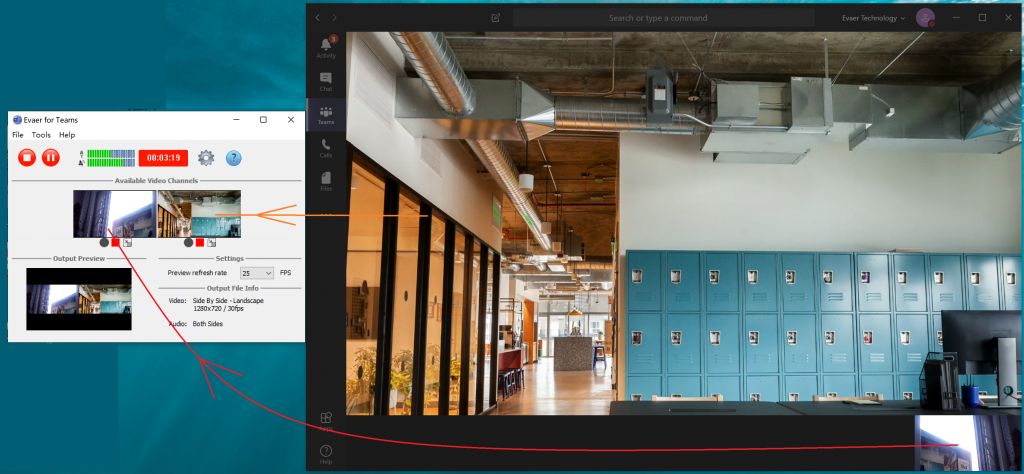
Evaer will record each video stream separately as above image shows, You can choose which video stream to record just by click the “Start/Stop recording” button under each of available video channel picture. So you can get a lot of flexibility when recording Teams video meetings.

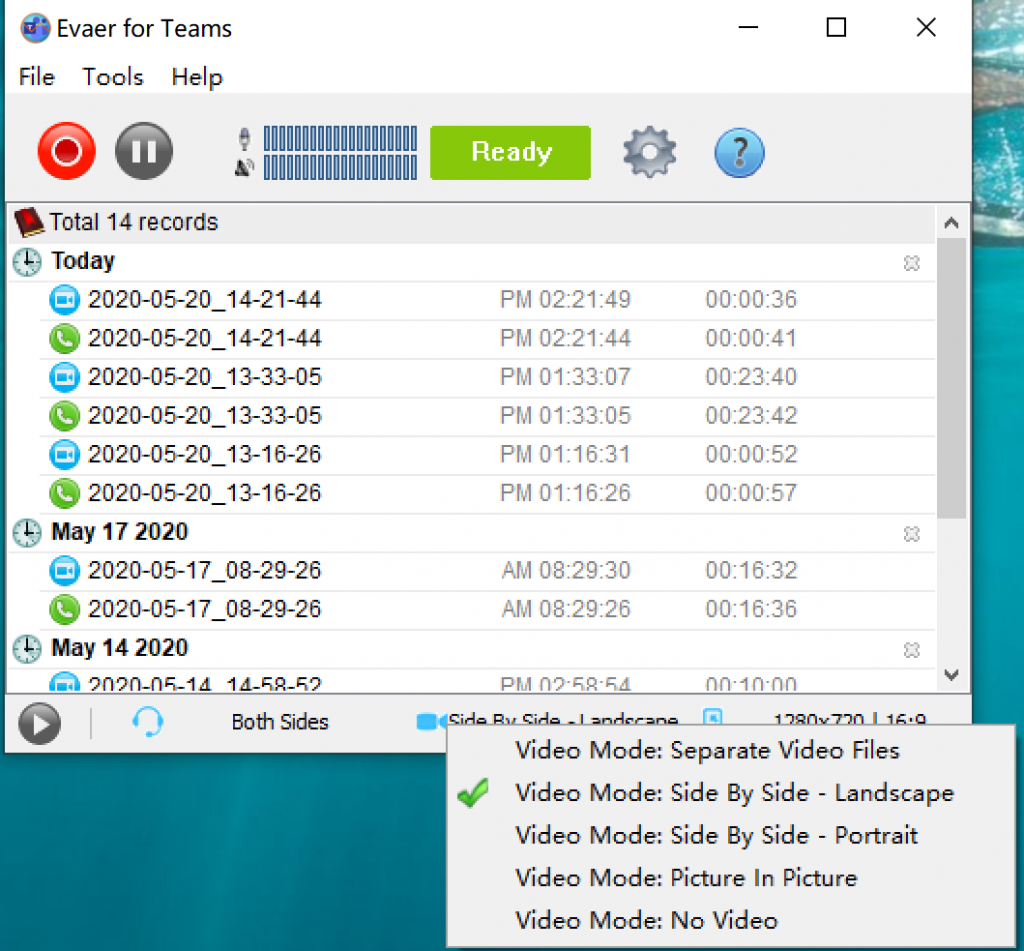
Evaer support recording Microsoft Teams meetings directly to your hard disk with picture-in-picture, side-by-side (landscape ,portrait), separate video files, screencast, audio-only, local-webcam-only and remote-webcam-only modes. So you can choose specific video recording mode according to your needs.

Recording Teams meetings video mode

Using Evaer to record Microsoft Teams meeting is very simple, you only need to download and install Evaer for Microsoft Teams, and then you can start recording Microsoft Teams calls without more settings.

Free download Evaer for Microsoft Teams at
https://www.evaer.com/TeamsCallRecorder.htm