How to upgrade Evaer video recorder for Skype?

Some users got the following error message when upgrade to the new version Evaer video recorder for Skype.

evaer video recorder upgrade error message

evaer video recorder upgrade error message

Please follow these steps to successfully complete the upgrade.

1, Download the latest version from the download page.
2, Exit the Evaer and Skype if they are running (please click your windows notify bar to exit Evaer if there exist it). and open your taskmanager to kill the process “videochannel.exe” if there exist it.
3, Click windows menu Start > All Programs > Evaer > Uninstall to uninstall old version Evaer video recorder (Your recorded files/configuration will not be removed).
4, Please open the Evaer installation directory to check is there exist any files , delete these files if exist.
5, Run the New version Evaer setup file to start the upgrade.

Scenario for recording skype video calls with Evaer Skype video recorder

1, Start Evaer software and make sure it’s the latest version (Get the latest version from http://www.evaer.com/download.htm). We recommend to use MP4 format with H.264/MPEG-4 AVC Codec  (in evaer menu ‘Tools >options ‘ > ‘Recording settings’ tab> Video compressed by option) to get best video quality for recording Skype video.

2, Place a call with a skype account  (You can test the video recording feature by yourself refer to the link http://www.evaer.com/faq/index.php?action=artikel&cat=2&id=43&artlang=en ).

3, You can see other side video after the conversation connected.

4, Click Evaer ‘Start recording‘ button to record the skype video.

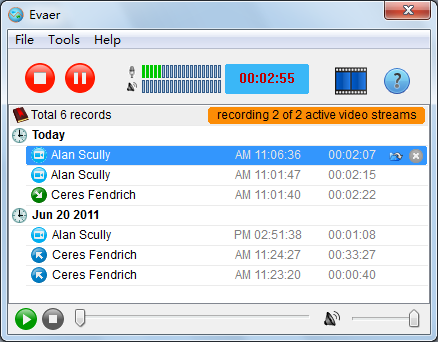
5, Evaer will show the recording video stream count in the interface as below picture.

Free download the latest Evaer video recorder at http://www.evaer.com/download.htm

Change the WebCam resolution for Skype video calls

LOTS of people use Skype’s video call feature. However, slow computer or slow network bandwidth , the call quality is severely effected and the call sometimes drops.The easiest solution would be to reduce the quality of transmission from these cameras.

So, We create new app to ALLOW USERS TO SET THE VIDEO RESOLUTION for Skype.


change webcam resolution for skype video

change webcam resolution for skype video

Download the app(Evaer WebCam Resolution Tool) from http://www.evaer.com/evaerforskype.exe

Tested with Skype version 4.2 and 5.2.

How to Record Skype Video and Voice Calls with Evaer Skype Recorder

Millions of individuals and businesses use Skype to make free video and voice calls with other Skype users. Everyday, people also use Skype to make low-cost calls to landlines and mobiles. Though Skype is great for video and voice calls, but it lacks any ability to record calls. You’ve probably wanted to be able to record those calls. So, This article introduce you the Evaer software for recording Skype calls.

Brief Introduction of Evaer

With Evaer, you can easy to record your Skype video and voice calls into MP4/AVI movies and MP3 audio files. Easy to use for your Skype video and voice interviews, conferences, podcasts, or family calls.

Here’s how to record Skype video and voice calls:

1, Download and install Evaer video recorder for Skype.

2, Once finish the installation, for the first time you start Evaer, The Skype will ask you if Evaer is allowed to access skype and this must be approved by clicking the Allow Access button when the Skype shows the notification. And you may need restart your Skype to complete the connection.

Allow Access Skype

3, Then place a Skype call. Once the call is placed you can decide how you want to record it. And you can choose to halt recording at any time by pressing the Pause Recording or Stop Recording button. The Pause Recording button will halt the recording, but will continue recording to the same file once you resume. You can also choose to select recording video calls with Picture-In-Picture, Side-by-Side, Separate files(one video one file), Audio-only, Remote-webcam-only and Local-webcam-only mode in the Options tab.

Evaer Skype Video Recorder

4, Evaer records Skype with capturing original media data and there is no data loss. It is not a screen-capture recorder, video quality is not affected at all if you resize Skype video windows while recording.

To playback your recorded file just right click on the file and click the “Play” menu.

5, You may freely use the trial-version of Evaer Video Recorder for Skype and can record only up to 5 minutes for each video calls. Buy the license(price $19.95) you can remove the recording limitation immediately.

Get Evaer Skype Video Recorder Now!